Section 5: Discovering AI/ML Assets with Patra
Stage 5.1: What is Patra?
Patra is the ICICLE ecosystem’s open knowledge base for AI/ML models and the datasets behind them — its own tagline puts it well: “Trustworthy AI starts with documentation.” Rather than treating models and data as separate, loosely-tracked files, Patra registers each as a structured, versioned record: a Model Card captures a model’s framework, license, task type, gating status, and a unique ID meant for downstream use, while a Datasheet captures a dataset’s description, creators, publisher, size, and its own unique ID and storage location. Researchers can browse and filter either catalog — by category, framework, author, or visibility (public vs. private) — to find what already exists before building something new, or explore an individual record in depth (its full description, creators, related identifiers, and a downloadable JSON) once they’ve found a candidate. Because every model and dataset carries its own unique ID, those records can be referenced directly by downstream tools — for benchmarking, retraining, or deployment — without re-uploading or re-describing the same data twice. Contributors can also register new records through Patra, so the catalog grows as new models are trained and new datasets are collected, keeping documentation attached to the artifact from the start rather than reconstructed after the fact.
Stage 5.2: Browse Datasheets and Model Cards with Patra
Step 5.2.1: Open the Patra Dashboard
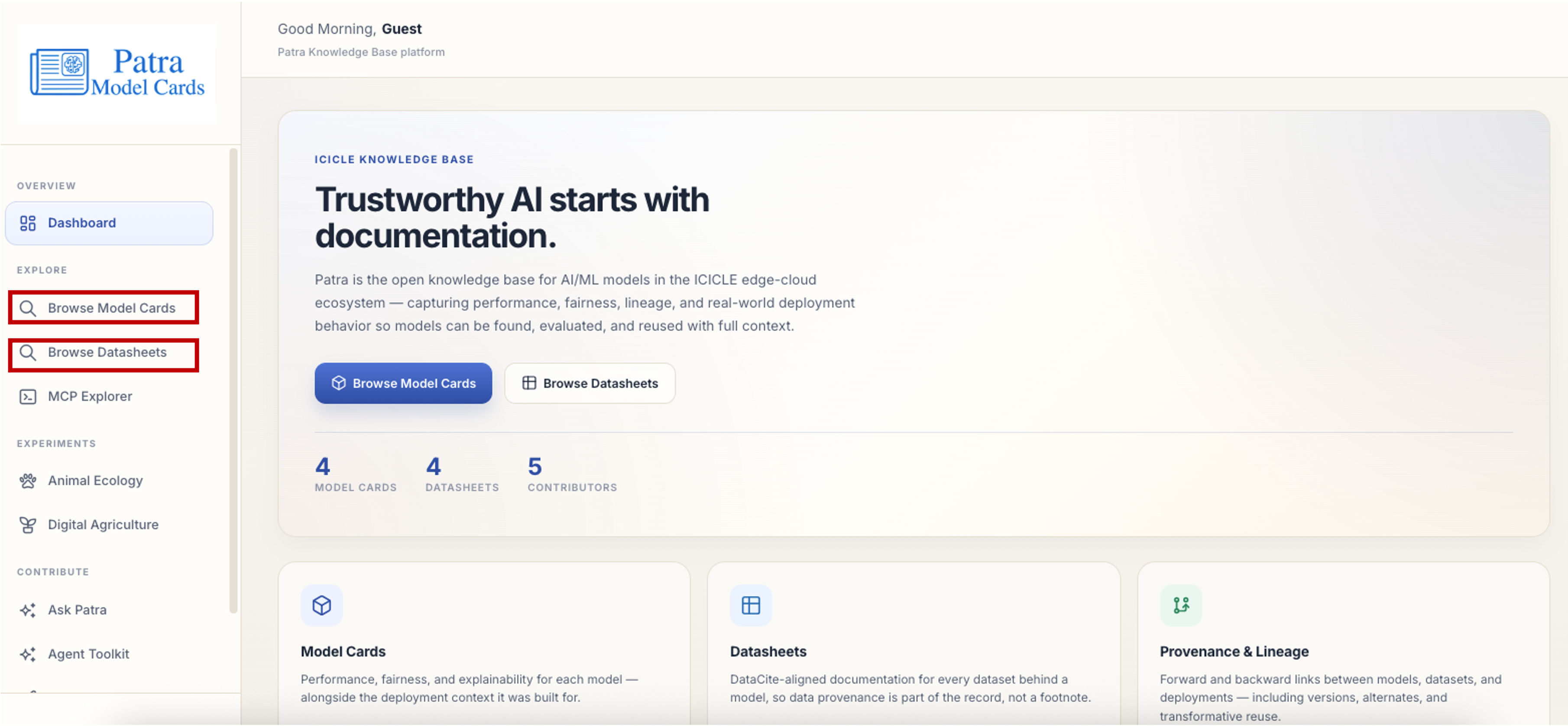
Patra is the open knowledge base for AI/ML models in the ICICLE edge-cloud ecosystem, capturing performance, fairness, lineage, and real-world deployment behavior so models can be found, evaluated, and reused with full context. The landing page gives you two entry points, Browse Model Cards and Browse Datasheets, along with a running count of model cards, datasheets, and contributors currently in the knowledge base.
Stage 5.3: Browse Datasheets with Patra
Step 5.3.1: Search and Filter Datasheets
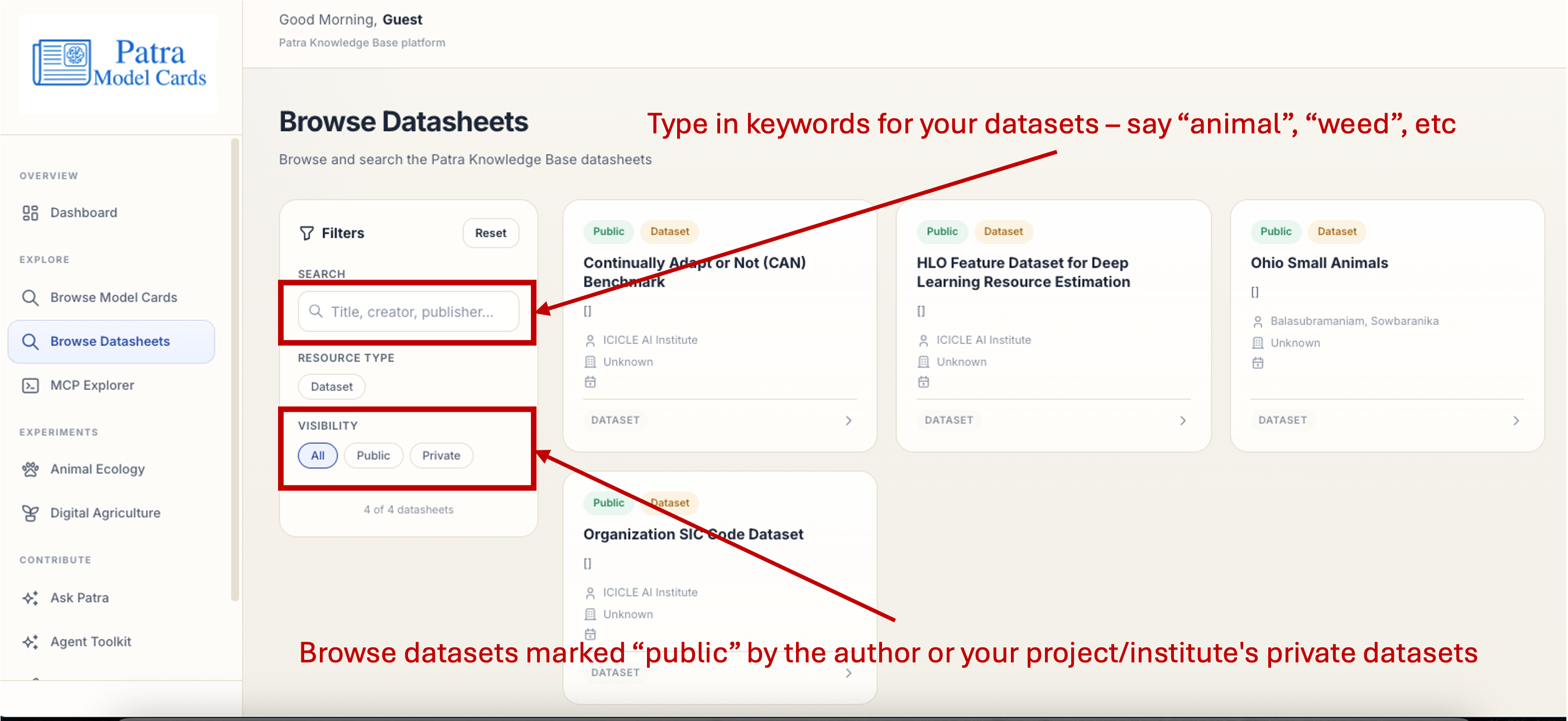
Click Browse Datasheets from the dashboard. Type in keywords for your dataset in the Search box, such as animal or weed, to filter the list by title, creator, or publisher. Use the Visibility filter to browse datasets marked Public by their author, or switch to Private to see your project or institute’s private datasets.
Step 5.3.2: Select a Datasheet
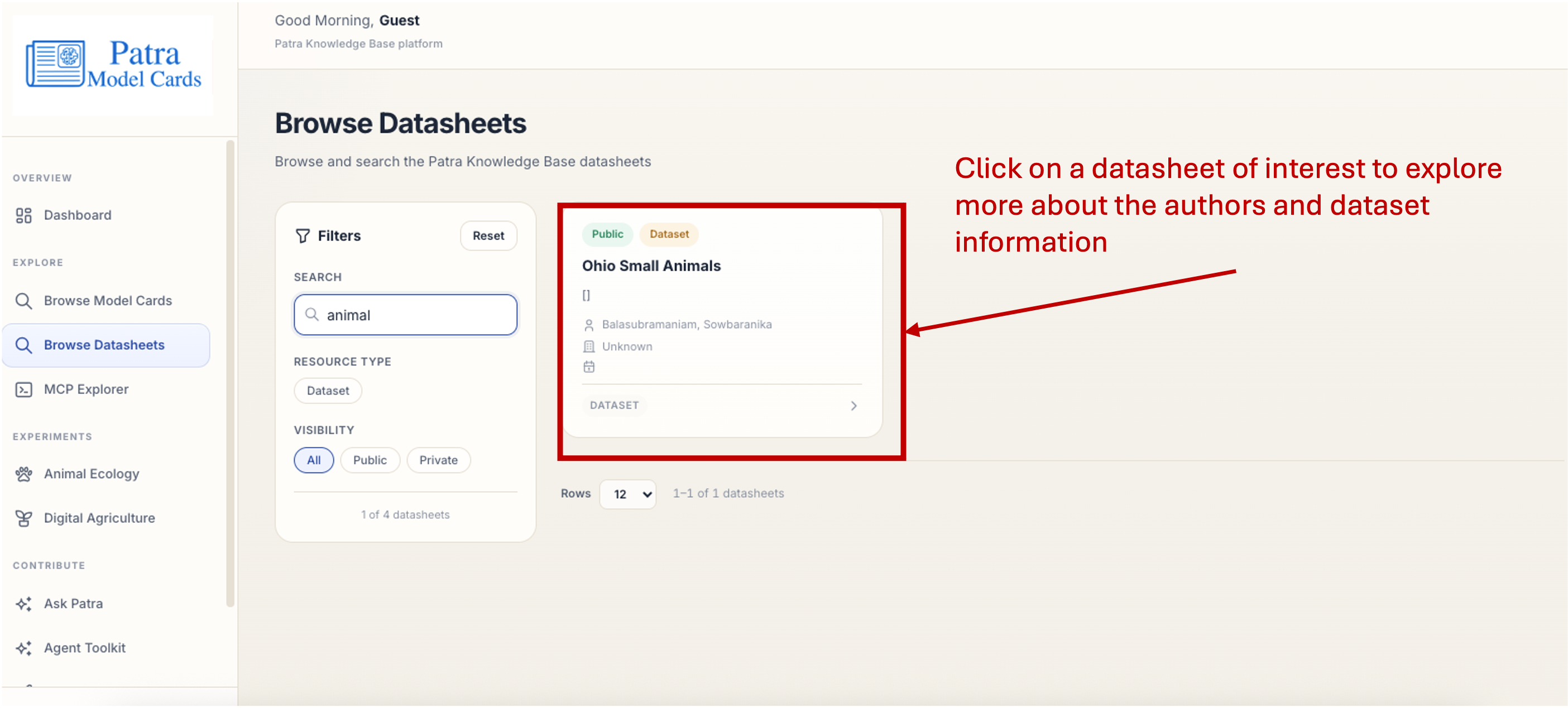
Once you’ve narrowed the list down, click on a datasheet of interest to explore more about its authors and dataset information.
Step 5.3.3: Explore a Datasheet’s Details
The datasheet page shows the dataset’s description and publisher, along with its location under Related Identifiers. At the top, next to the dataset title, you’ll also find the Dataset Unique ID (UUID).
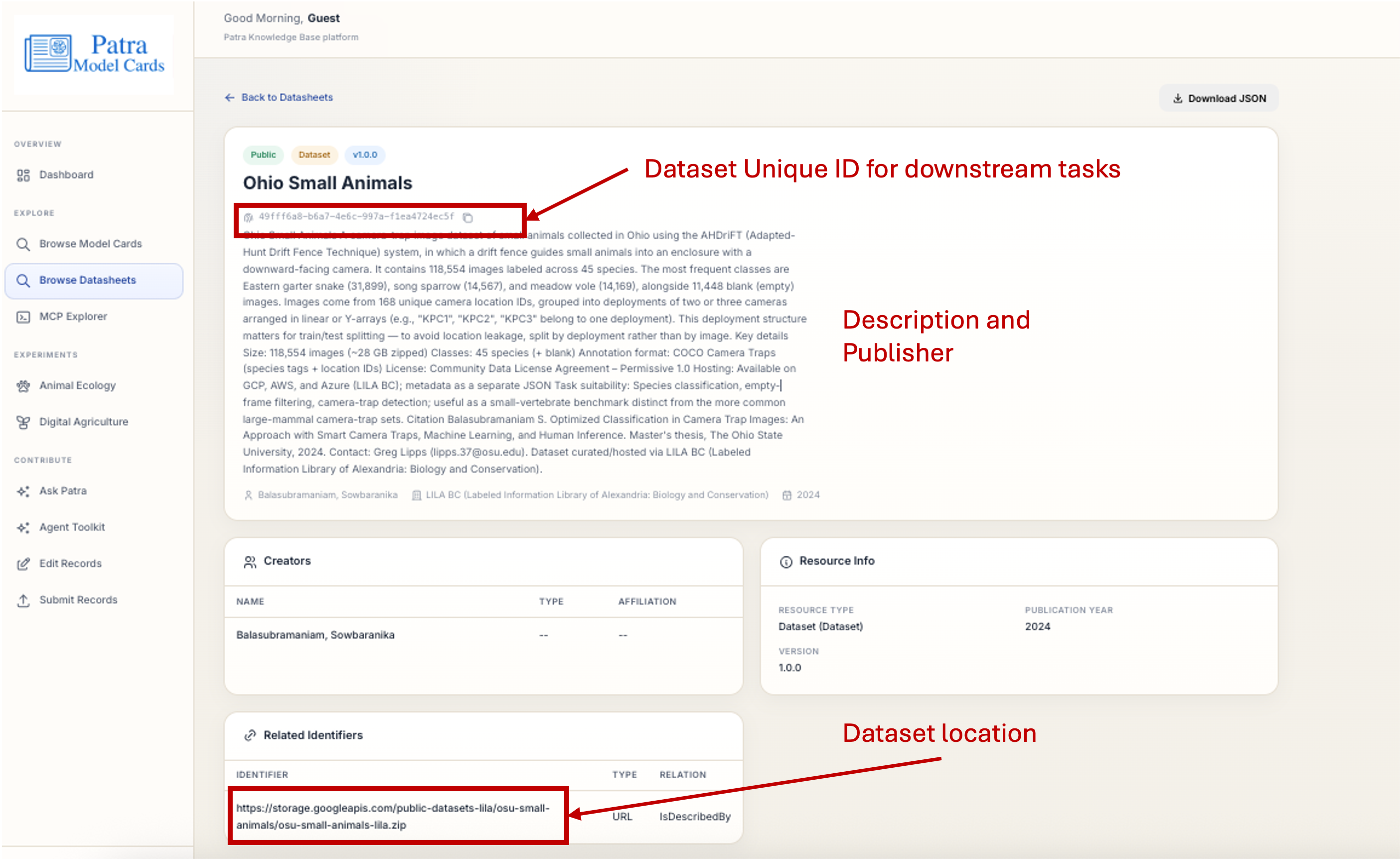
This UUID can be used in downstream tasks to download and use the dataset.
Stage 5.4: Browse Model Cards with Patra
Step 5.4.1: Filter Model Cards by Task
Click Browse Model Cards from the dashboard. The Category checkboxes in the Filters panel represent the type of AI/ML tasks assigned by the authors, such as computer vision, Image Segmentation, or Segmentation.
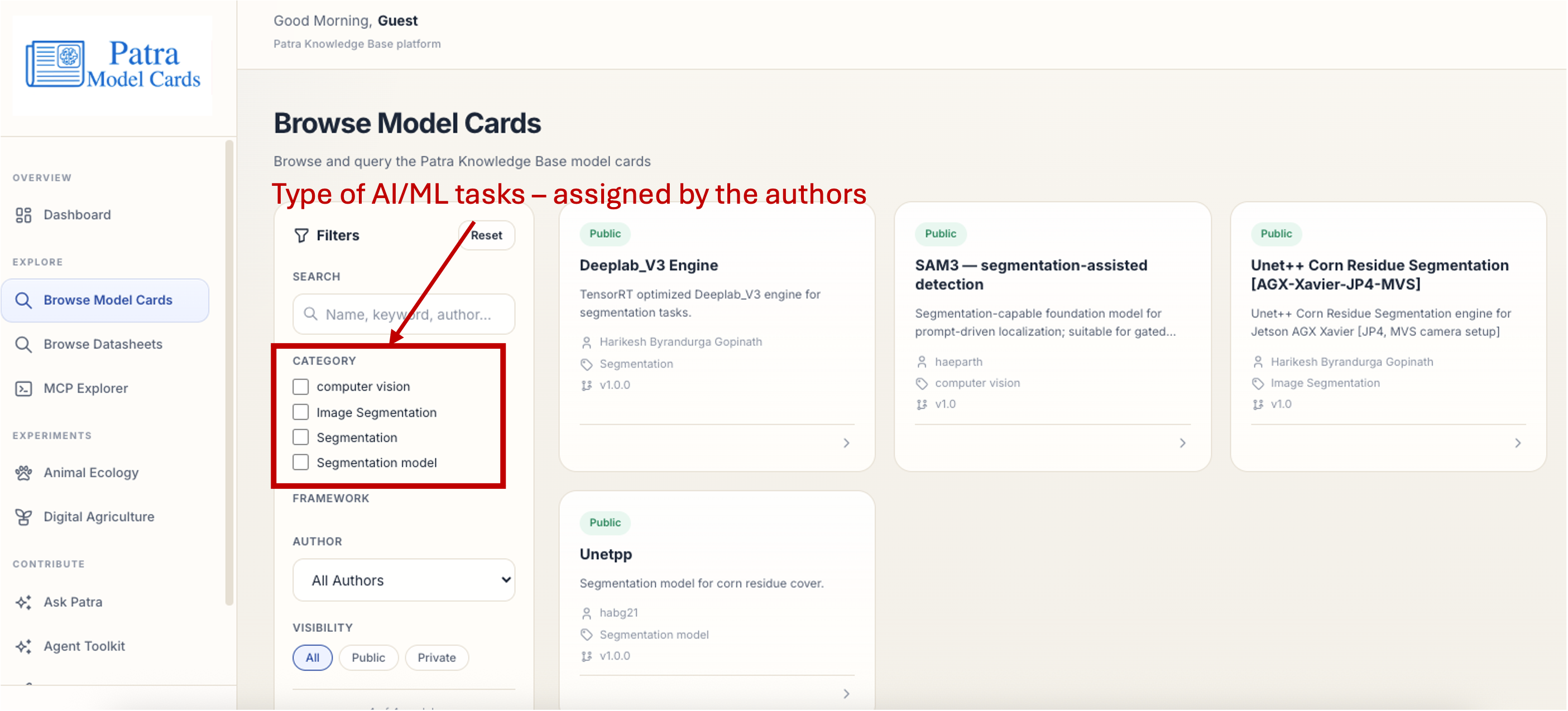
Step 5.4.2: Narrow Down by Category and Visibility
Select a type of model by checking one or more categories, and use the Visibility toggle to explore all public models under that category.
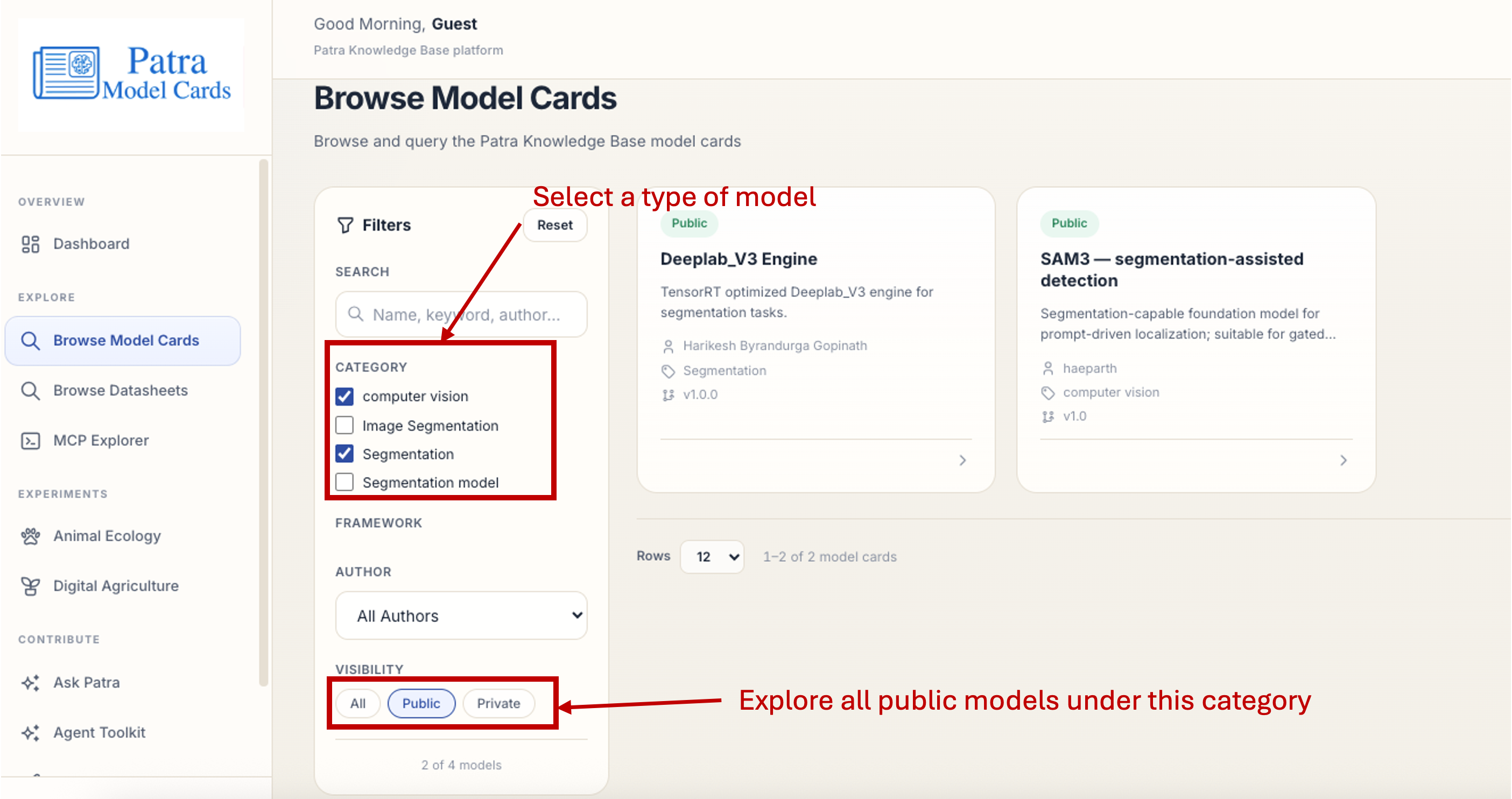
Step 5.4.3: Select a Model Card
From the filtered results, select a model card to explore its authors, model license, and more information.
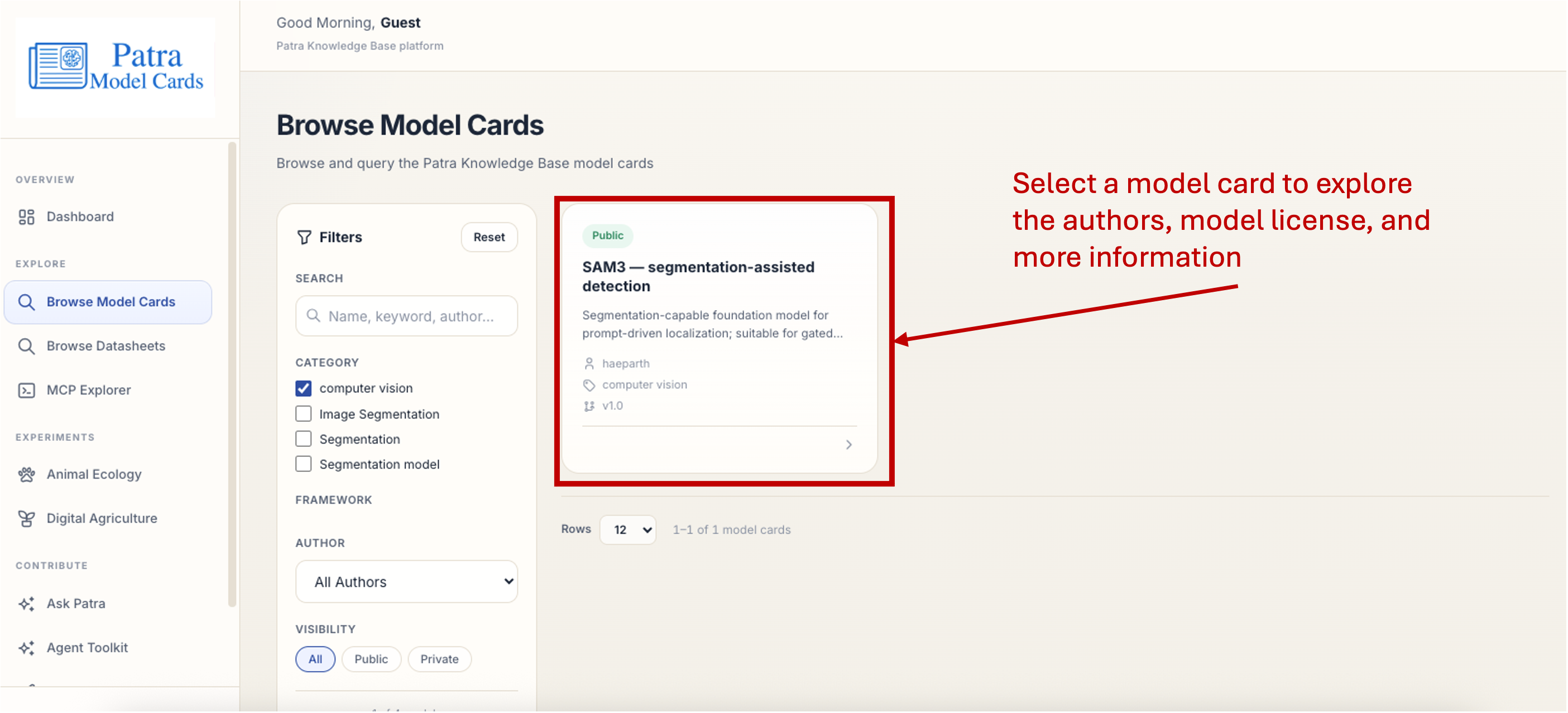
Step 5.4.4: Explore a Model Card’s Details
The model card page shows the model’s specs, including its framework, owner, license, and whether it’s gated, alongside the Model Unique ID (UUID) next to the model title.
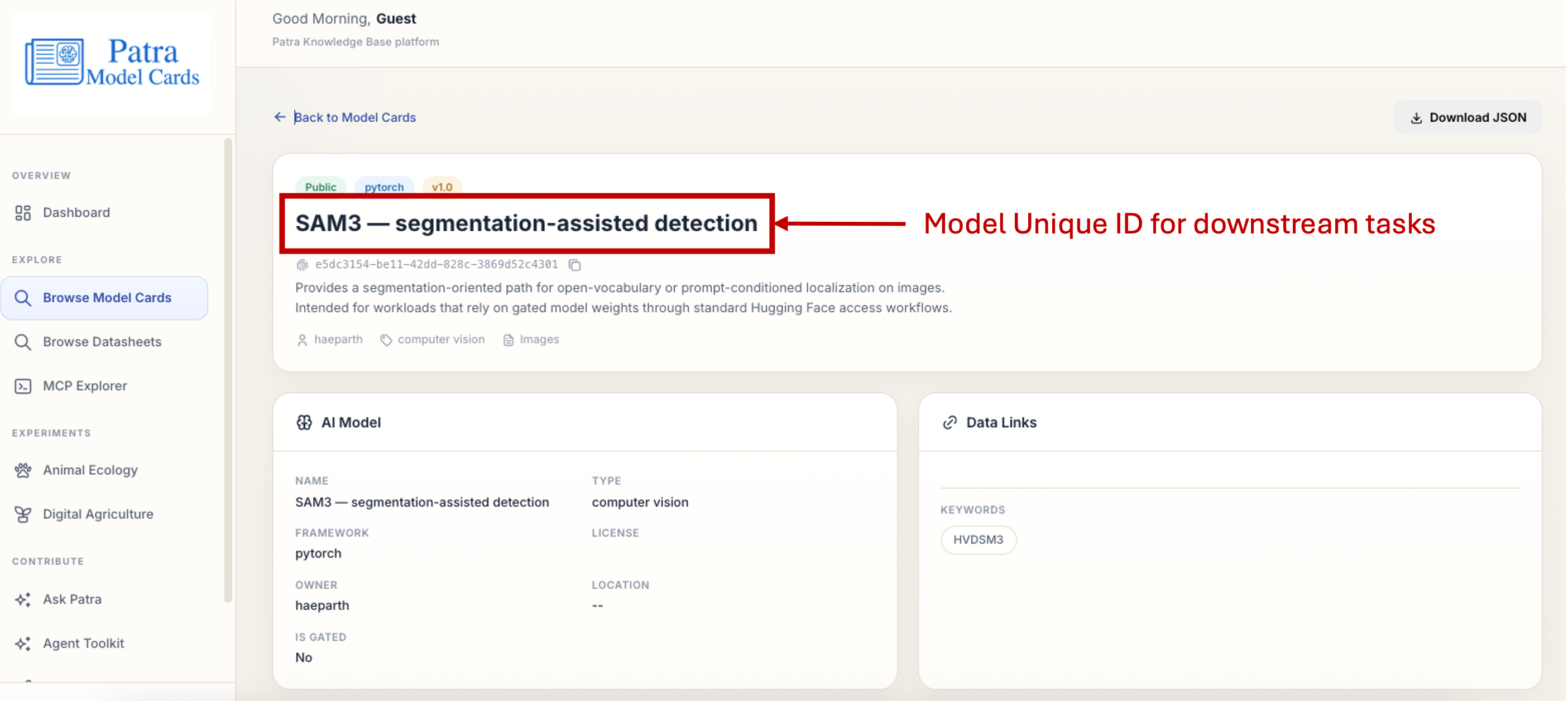
Just like the dataset UUID, this model UUID can be used in downstream tasks to download and use the model card.
Stage 5.5: Register a Datasheet with Patra
Patra isn’t only for browsing — contributors can register their own records so documentation travels with the artifact from the start rather than being reconstructed later. Registering a dataset’s Datasheet first gives it a unique ID you can point back to when you register the model trained on it.
Step 5.5.1: Sign In and Open Submit Records
Browsing Patra is open to everyone, but registering records requires signing in. Use the login in the sidebar to sign in, then open Submit Records. The page notes that records are published immediately.
Step 5.5.2: Choose the Datasheet Record Type
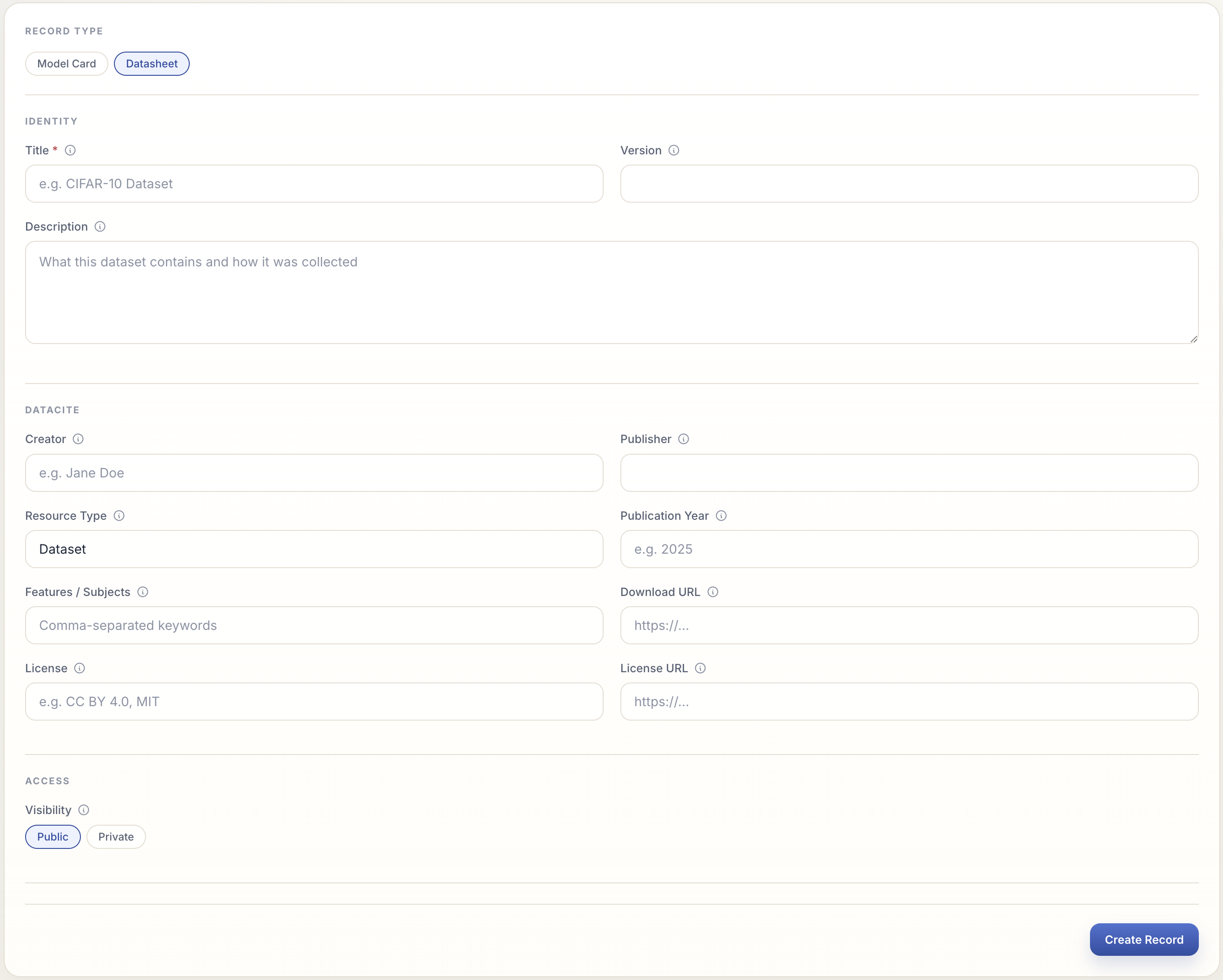
Under Record Type, click the Datasheet chip. The form walks you through a short stepper — Identity → DataCite → Access → Review — with Continue to advance and Back to revise.
Step 5.5.3: Fill In the Datasheet Fields
Work through each step of the stepper:
- Identity — Title (required), Version, and a Description of what the dataset contains and how it was collected.
- DataCite — Creator (comma-separated names; defaults to your name if left blank), Publisher, Resource Type (e.g.
Dataset), Publication Year, Features / Subjects (comma-separated keywords), and a Download URL. - Access — set Visibility to
PublicorPrivate.
Step 5.5.4: Review and Create
On the Review step, check each section (use the stepper or Back to fix anything), then click Create Record. On success, Patra shows the new Dataset Unique ID (UUID) — copy it, you’ll reuse it in Stage 5.6 — and a View record button that opens the new datasheet.

Stage 5.6: Register a Model Card with Patra
With the dataset’s datasheet registered, you can register the Model Card for a model trained on it and link the two together.
Step 5.6.1: Choose the Model Card Record Type
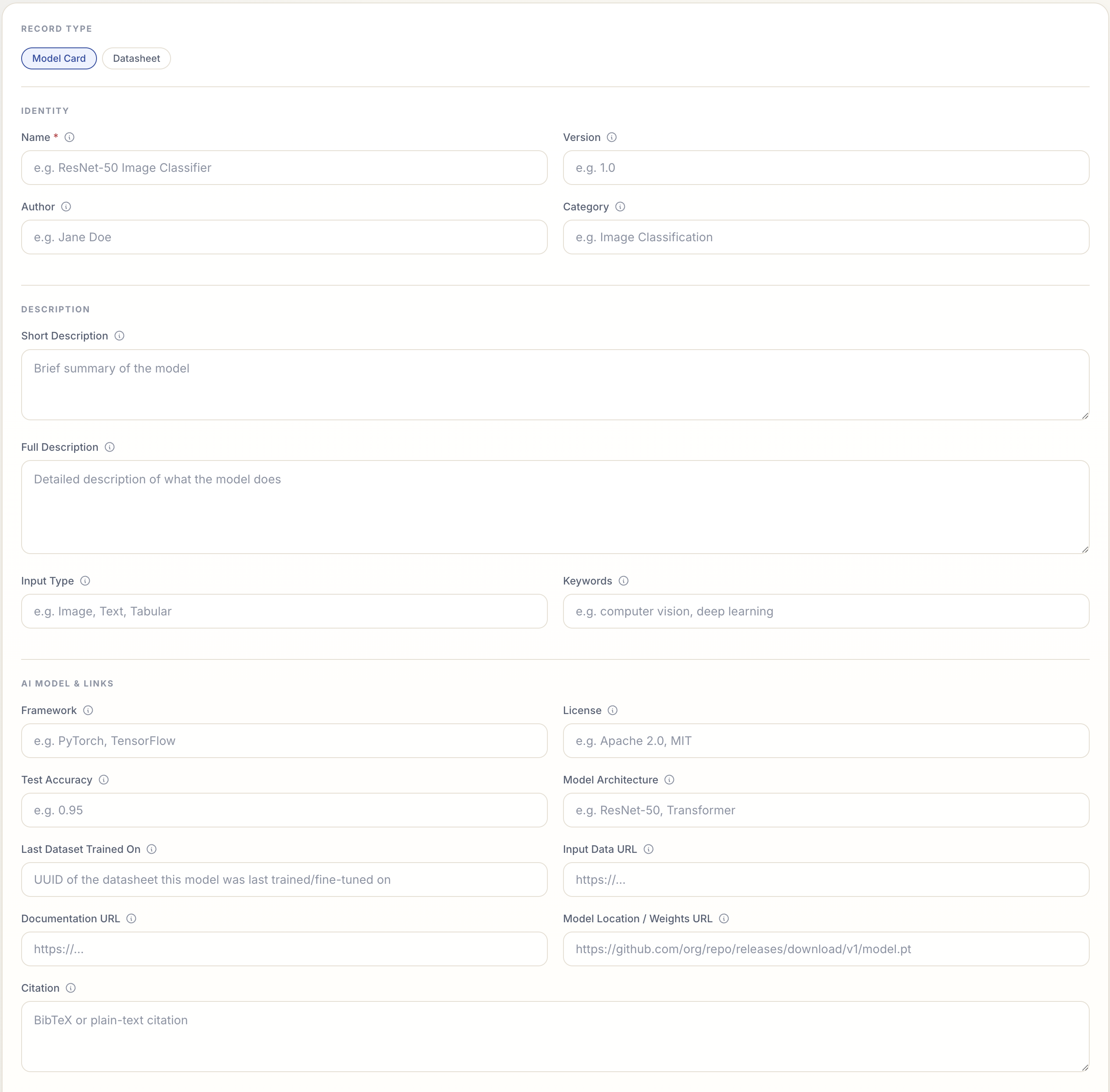
Open Submit Records again and select the Model Card chip under Record Type. Its stepper has a few more steps — Identity → Description → AI Model & Links → Access → Review.
Step 5.6.2: Fill In the Model Card Fields
Work through each step:
- Identity — Name (required), Version, Author (defaults to your name), and Category (e.g.
Image Classification). - Description — Short Description, Full Description, Input Type (e.g.
Image), and Keywords. - AI Model & Links — Framework, License, Test Accuracy (a value between 0 and 1), Model Architecture, and Last Dataset Trained On — paste the Dataset UUID you copied in Stage 5.5 here to link this model to the dataset it was trained on. Add the Input Data URL, Documentation URL, Model Location / Weights URL, and a Citation if you have them.
- Access — set Visibility (
Public/Private) and Access (Open/Gated).
Step 5.6.3: Review, Validate Links, and Create
On the Review step you can keep Validate links on submit (Patra checks the URL fields you entered) or choose Skip, then click Create Record. On success, Patra shows the new Model Unique ID (UUID) along with a link-check report, and a View record button to open the model card.