Section 4: Ultralytics Fine-Tuning App
Open the interactive diagram in a new tab
In the previous section, the YOLO 26 base model yolo26n has been downloaded to FlexServ private model pool, and this fine-tuning task will use that as a base model and fine-tune it using a set of camera-trap images. The fine-tuned model will be save into FlexServ private model pool, and later we will generate model performance evaluation code using FlexServ, and run that code in our Jupyter Notebook Environment. The evaluation code will send camera-trap images to our yolo inference API in FlexServ to get the model inference result and compare that with the ground truth labels in our Jupyter Notebook Environment to get the model evaluation result.
This application allows users to fine-tune Ultralytics YOLO 26 models using Singularity containers in a batch processing environment.
It is designed to run on High-Performance Computing (HPC) systems via Tapis, leveraging GPU acceleration for training tasks.
Note: This app is already registered for the tutorial and is available to run via the Tapis UI.
Locating the App and Configure Job Submission
Login to public.tapis.io using your TACC username and password.
Go to the App tab and find the app with name yolo-finetuning-arm64.
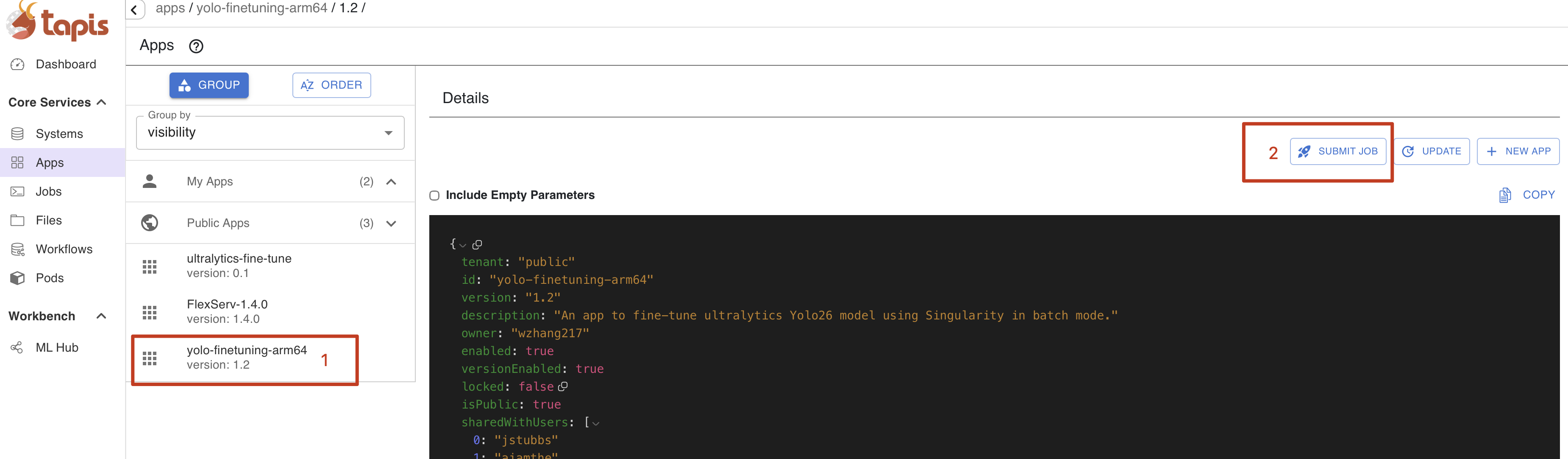
Click on the Submit Job button to and then click on the USE GUIDED JOB LAUNCHER button.
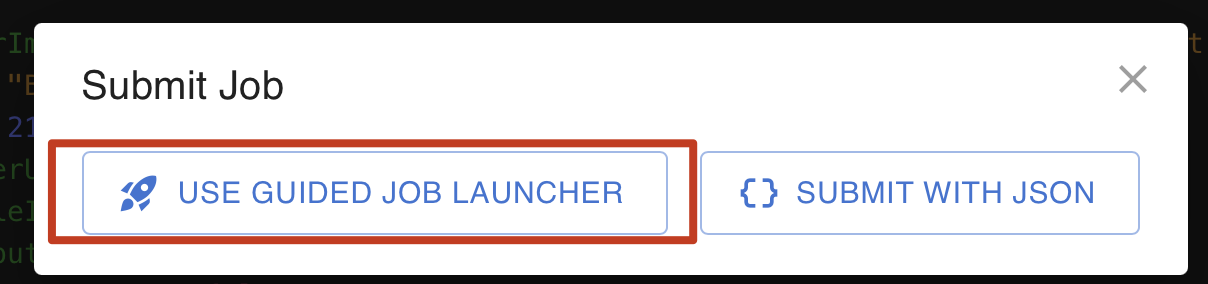
Now we are in the job configuration interface.
In the Execution page, select the following:
- Execution System -
vista-test-nairr - Job Type -
Batch - Batch Logical Queue -
gh-shared
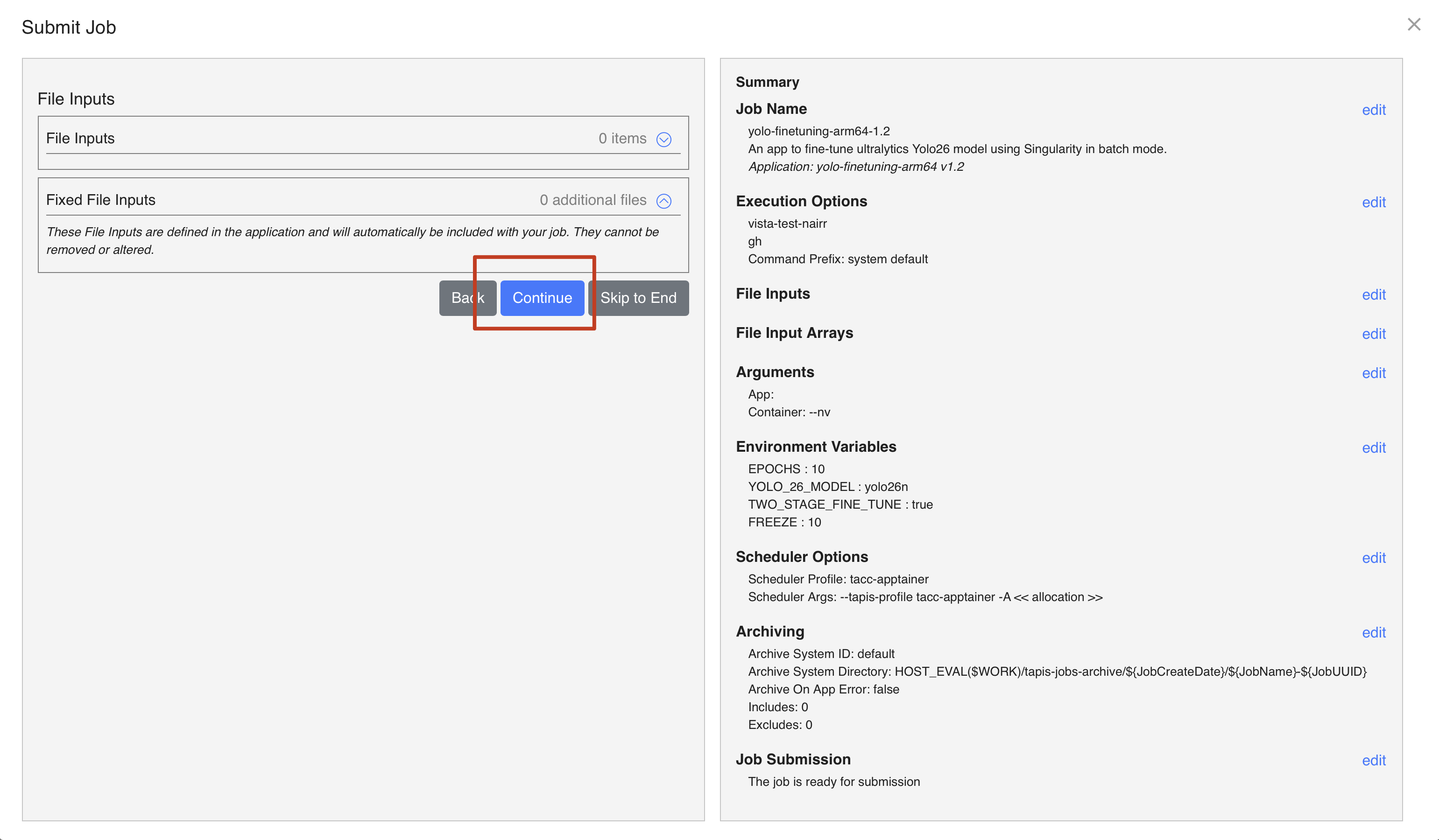
Click Environment
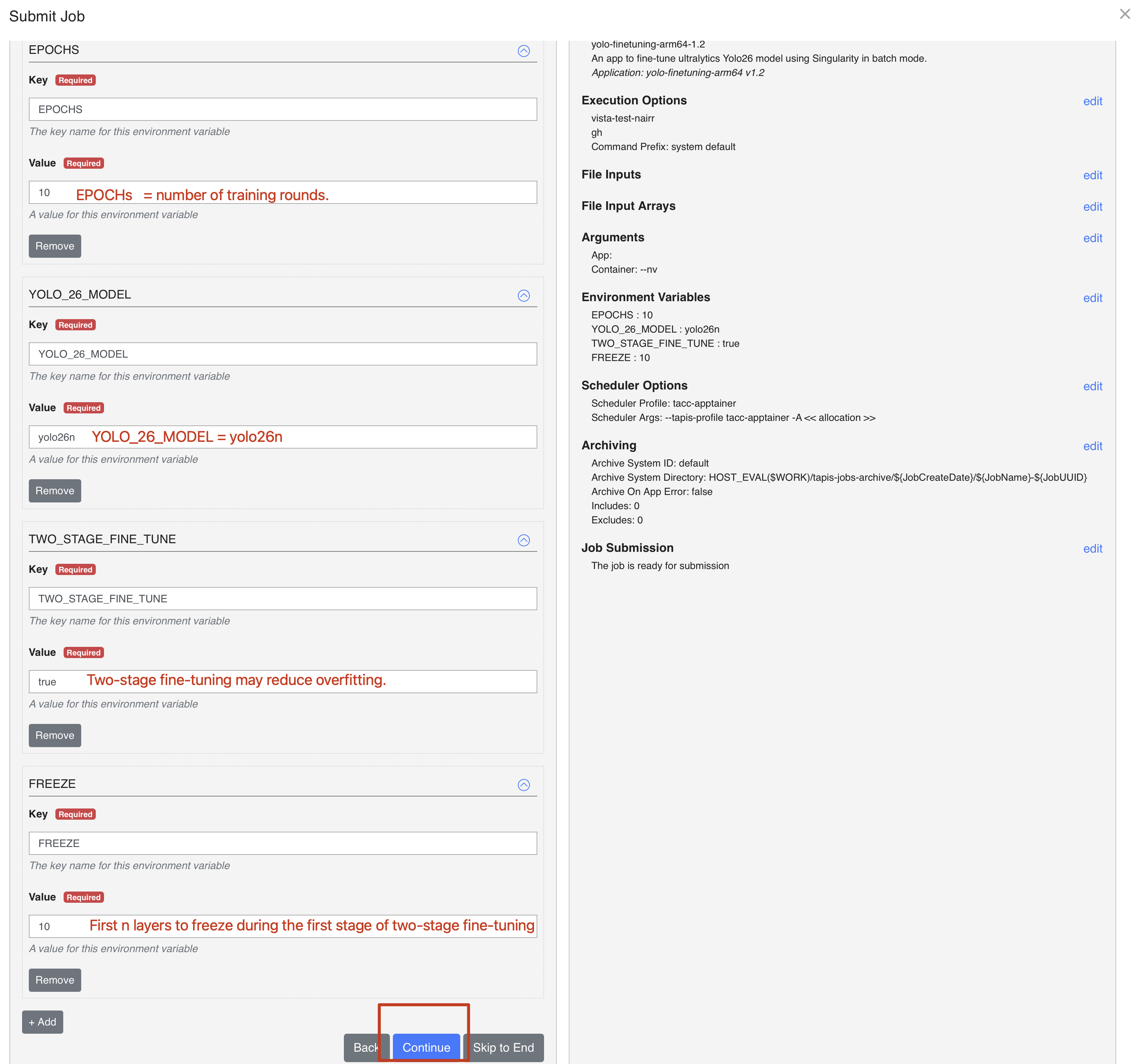
There are 4 environment variables important for the fine-tuning job.
- EPOCHS - number of learning rounds. 10 or 20 is a good number.
- YOLO_26_MODEL - the yolo model name. Here we use
yolo26nfor the best trade-off between quality and speed. Note that you have to make sure you usedyolo26nmodel previously during the FlexServ section so that theyolo/yolo26nmodel shows up in your private model pool of your FlexServ. If you happen to have used a different yolo26 model during our FlexServ section, sayyolo26l, you should putyolo26lhere forYOLO_26_MODELinstead. - TWO_STAGE_FINE_TUNE - If true, we use two-stage fine-tuning process where the first stage freezes the backbone and trains only the neck and head, allowing the detection layers to adapt to the new classes without disrupting pretrained features. The second stage unfreezes all layers and trains the full model with a lower learning rate to refine the backbone for the target domain.
- The freeze parameter accepts an integer. An integer freeze=10 freezes the first 10 layers (0 through 9, which corresponds to the backbone in YOLO26). This speeds up training and reduces overfitting when the dataset is small relative to the model capacity.
Go back to FlexServ UI, click on “Models” on the left navigation panel, and you can scroll up and down to see if you have a yolo model named yolo/yolo26n there in your private model pool.

This is because we have run yolo inference test during our FlexServ section.
Since the yolo model you see is yolo26n, that means you should fill yolo26n in the YOLO_26_MODEL field.
Now click on Scheduler
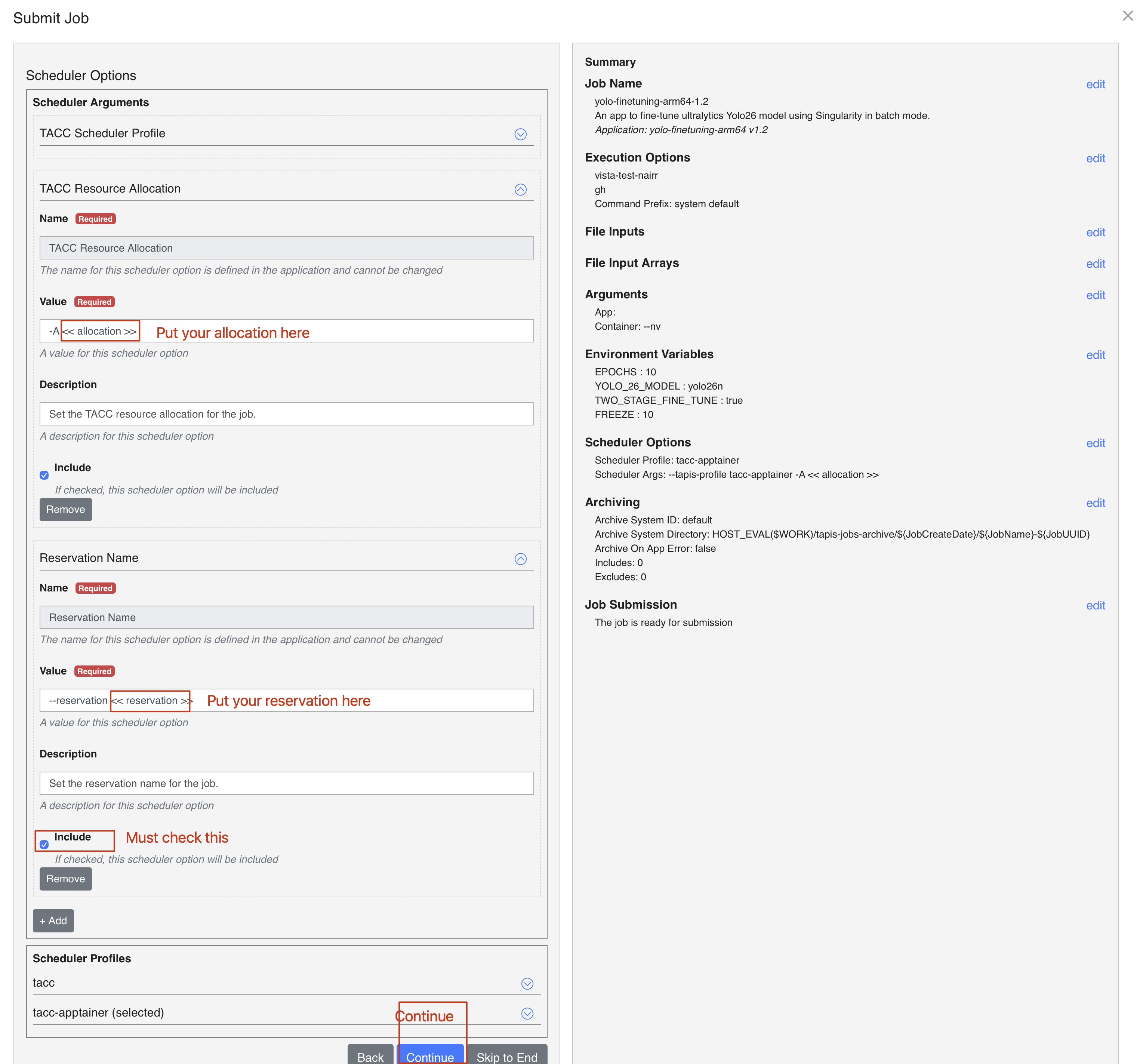
In Scheduler tab, you need to fill the following:
- For -A allocation, put
TRA24006 - For –reservation, put
Tapis+Tutorial+Gateways
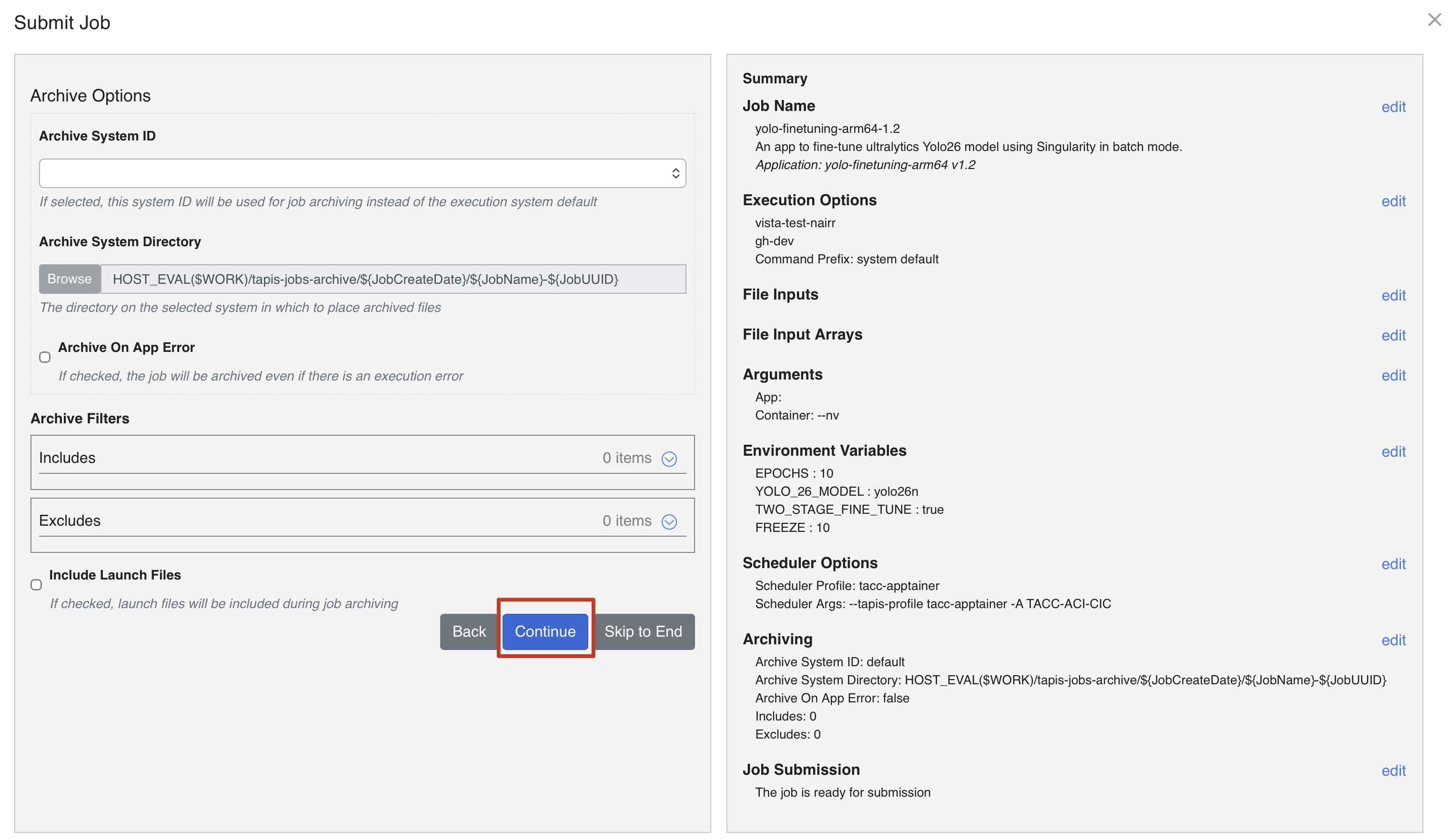
After this, you can click on Review & submit
Submit the job
Click Submit Job, and this should submit your job.
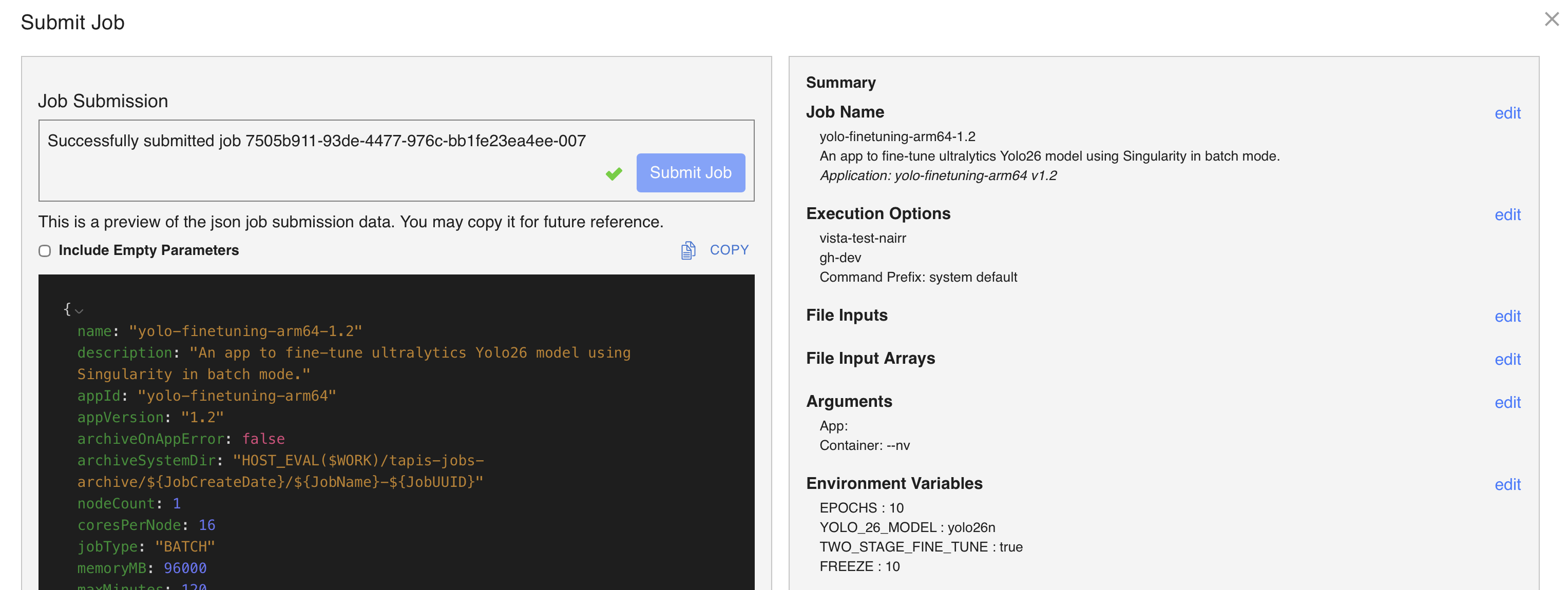
Click Open Job and you should see the submitted job.
It can take roughly 5-10 minutes to finish the job, but depending on the job waiting time, it can be even longer.
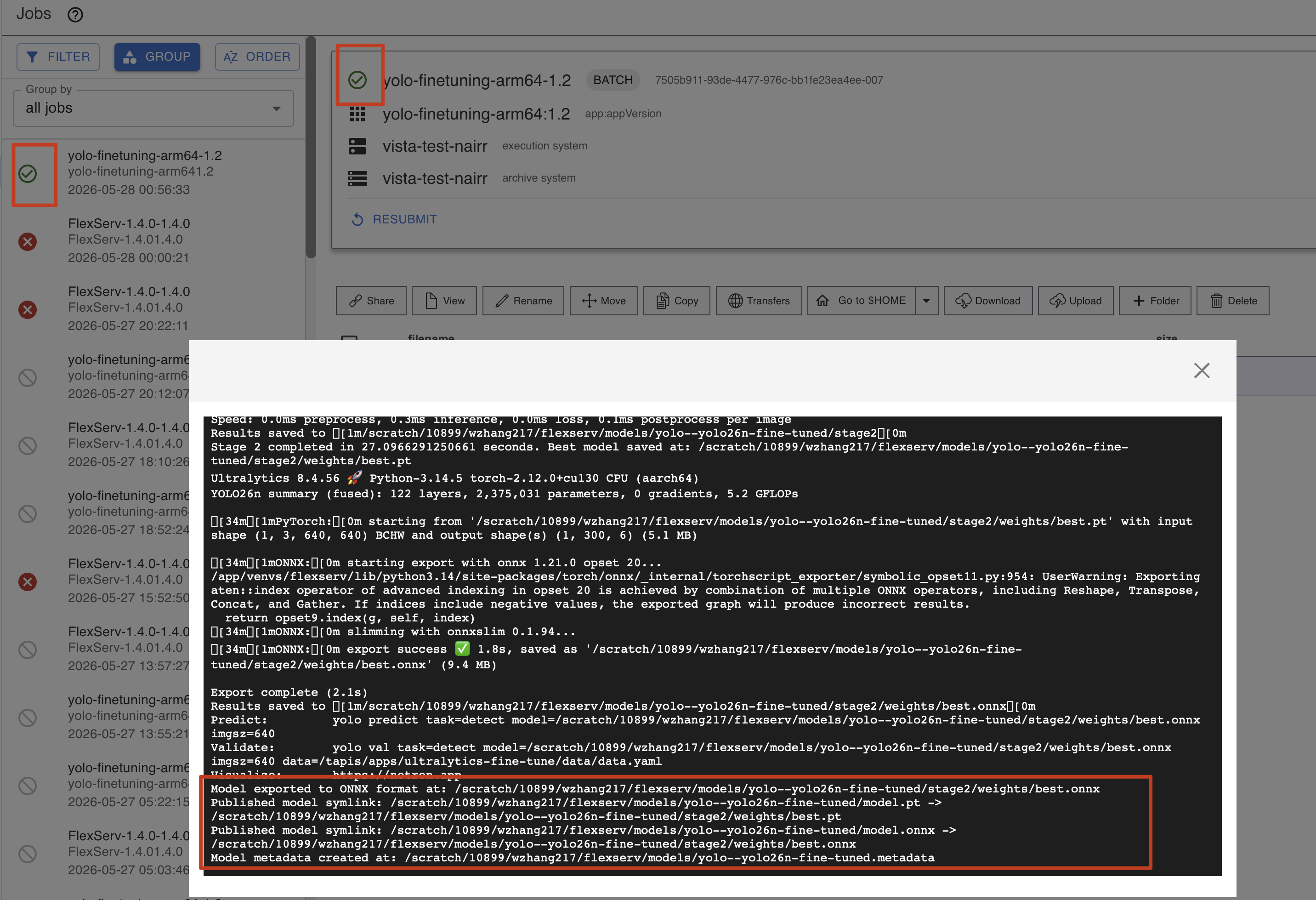
But once finished, you can open the tapisjob.out file and view it. At the end of the output, you should see message indicating that the fine-tuned models are now saved to FlexServ’s private model pool ($SCRATCH/flexserv/models).
Back to the FlexServ UI, in the model pool view, you should be able to see the yolo/yolo26n-fine-tuned model in your private model pool.
Up Next
Now, we wonder how well the fine-tuned model works as compared to the original one.
In our model evaluation section, we will use a recently-released Qwen LLM in FlexServ to generate a python code that will call the Yolo inference API in FlexServ to perform the object detection inference using both the yolo26n based model and the yolo26n-fine-tuned model. We can see the difference in terms of the accuracy of these two models.